Step by step guide to sell Digital products using PayPal
If you want to sell digital products using PayPal than there are two ways.
1-Selling digital products using social media like Instagram or Facebook.
2-Selling digital products using website.
1-How to sell digital products on social media (without website)
If you have followers on your social media than you have the opportunity to sell something to your followers and make money out of it. You can sell for example e-books, stock images, icons, LUT packs etc.
If you don’t have a website and you want to sell through your social media platform you need two things:
1-Paypal account
2-Gumroad account
Step 1 – PayPal account
Head over to PayPal website www.paypal.com and create an account if you haven’t created yet.
Step 2 – Gumroad account
What is Gumroad?
Gumroad is a platform where you will be able to sell products online easily. Here the payment is received from customers and paid to the seller through PayPal. Millions of products have been sold on this platform.
Go to www.gumroad.com and create an account by clicking start selling
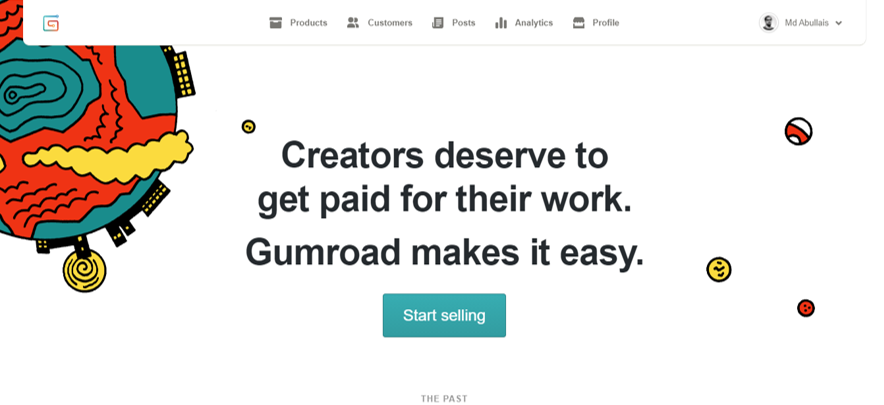
Now add your product to Gumroad by following these easy steps
1-Click Products and select Add product
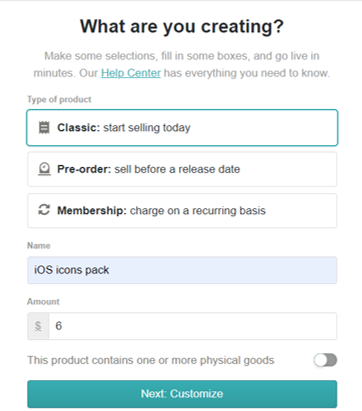
2-Add Name, cover photo, description of product (In my case I am selling iOS 14 icons pack)
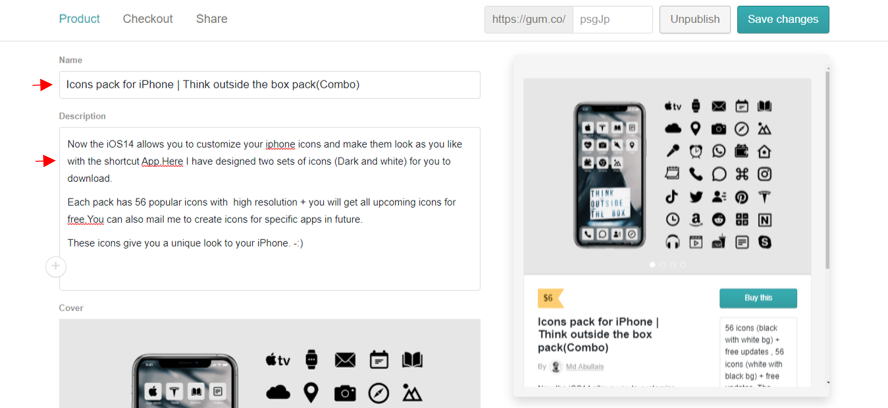
Add the name of call to action button for example buy now, click to download etc. Add summary of the product. And in content add that item you want to sell (I.e. upload your files you want to sell to your customer)
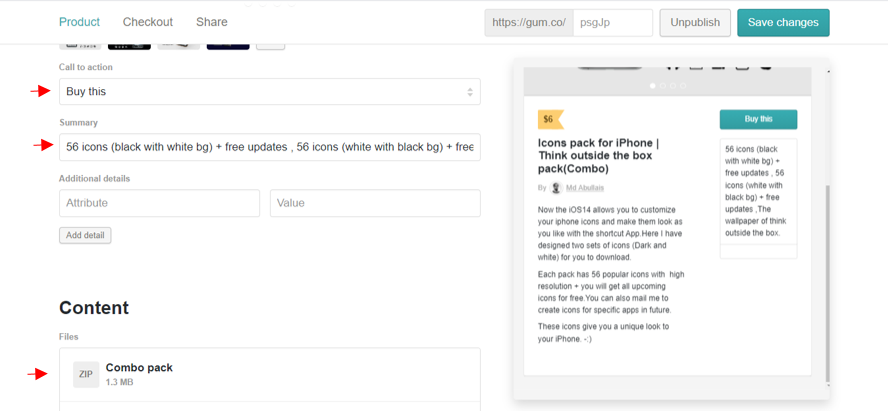
After you fill all details (All details are not necessary, you can skip some) click publish. Your product is ready to be sold.
3-After you have created your product go to your products click small arrow on the product.
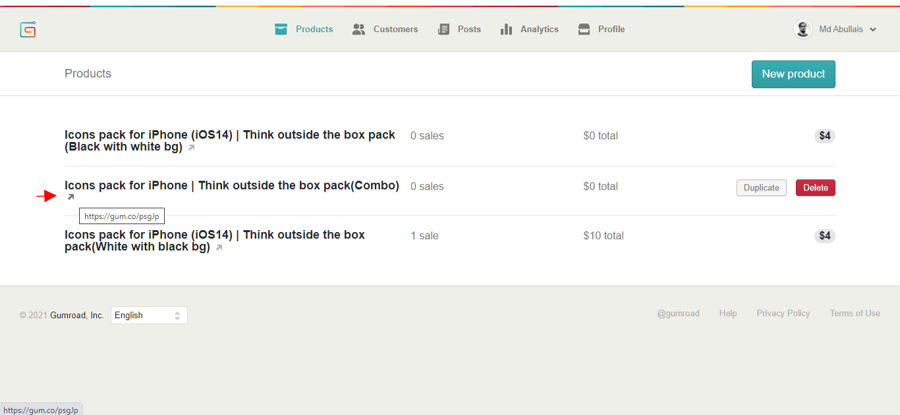
The product will be open in a new tab.
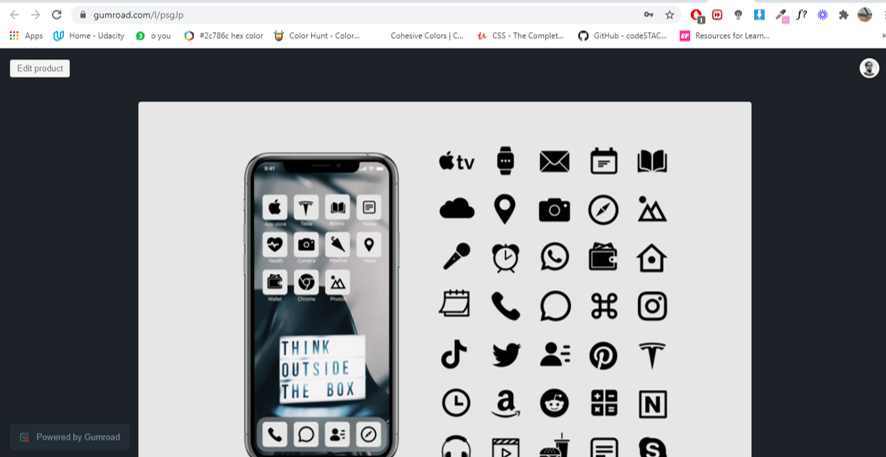
Now copy the link of the page and share it on your social media (Facebook, Instagram etc.).
For example this is my link: https://gumroad.com/l/psgJp
You can follow this method even when you have a website, just add a button to your website which has href of the link.
Benefits of selling on Gumroad:
- Gumraod is a very popular platform. It is secure for payments and trustable source for selling digital products like Images, motion graphic templates, LUT packs, icons etc.
- When you create a product on Gumroad it also gets visible in Gumroad market place so people will not only buy through your link but also buy from Gumroad market place if they found it.
- Gumroad also allows you to sell digital products on membership or subscription basis.
Now the only downside of platforms like Gumroad is they take small percentage from your sale.
Now in order to avoid the commission you must have a website of your own, it looks more professional to your customers to have your own website or I would recommend you to start with Gumroad and once you make some money, go ahead for creating a website.
How to sell digital products on your website using PayPal
In this method we will use PayPal’s pay button to sell the digital products.
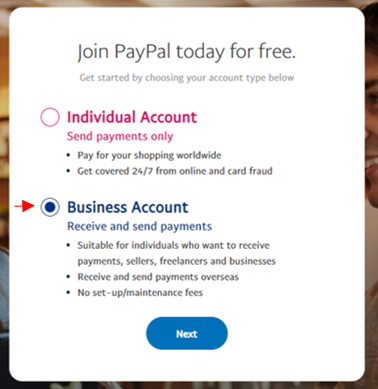
Step 1
Go to www.paypal.com and create a business account.
Step 2
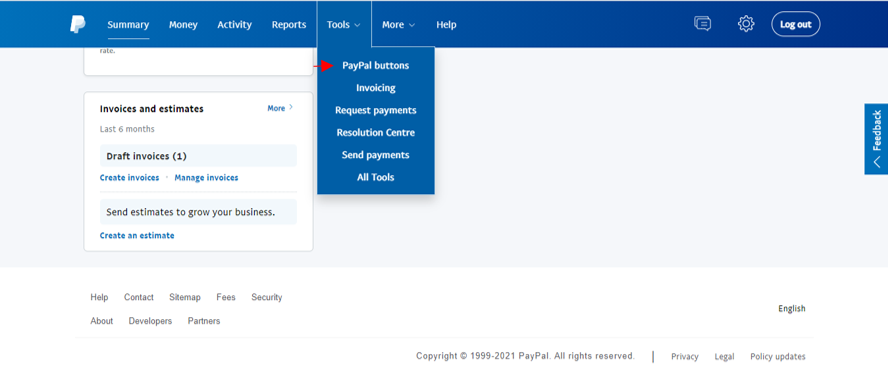
After you have created account go to tools > PayPal Buttons
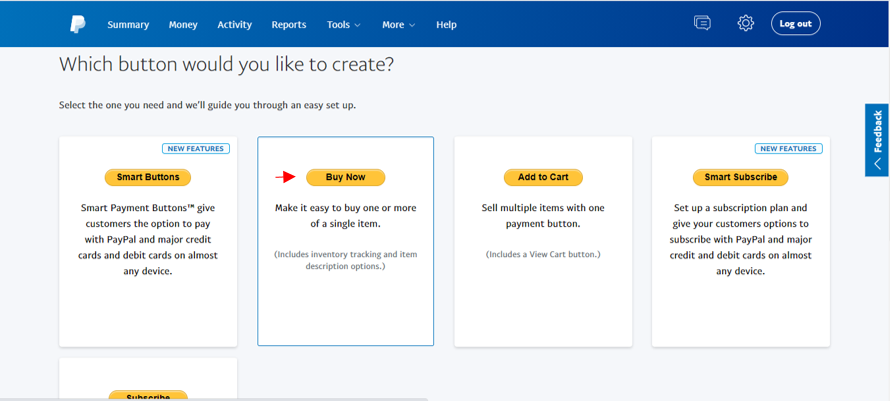
For selling digital products buy now button is suitable, select it and create a new buy now button
Give the name of the product for which this payment is being made and give it a price.
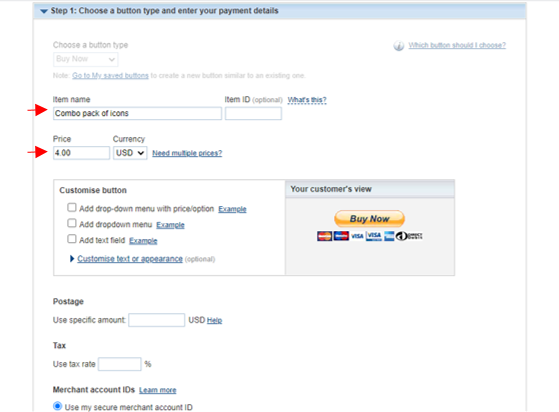
After that in step 3 (there is nothing to change in step 2) select No to all and “Take customers to this URL when they finish checkout” in this option add the link of your after payment page (I will show you later what is this. First you have to read the whole article).
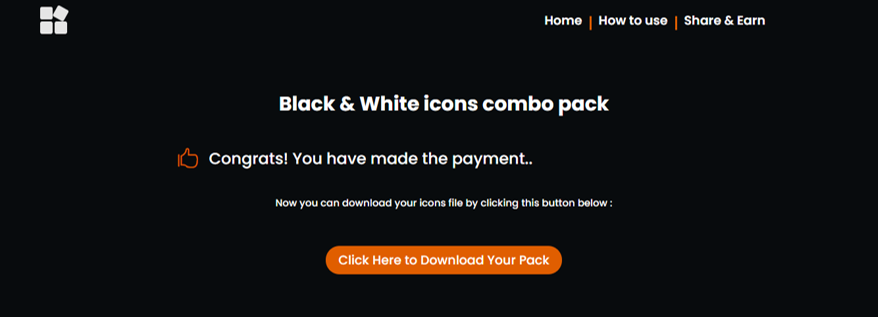
Now when customer makes the payment he will be directed to after payment page where there he will be able to download the product for example this is my after payment page:
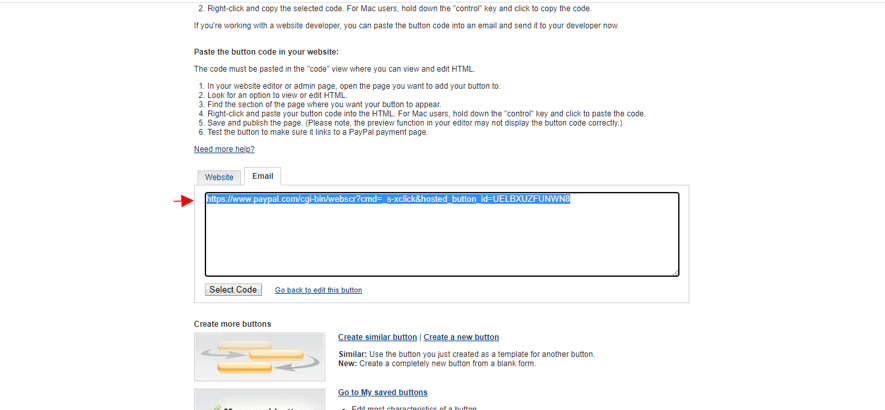
Lastly after you save the button, copy the url of that button.
Step 3
Create a page on your website where you showcase your product and add a call to action button for example Get icons.
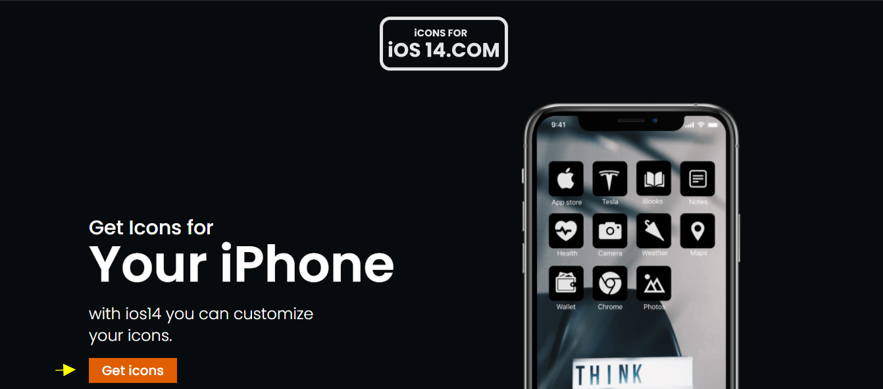
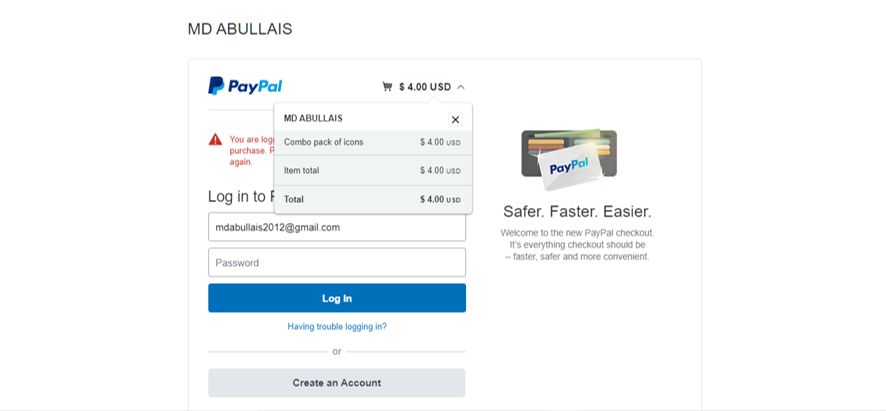
Paste the URL of that PayPal button inside Get icons button and when customer clicks it he will be directed to the PayPal payment page like this:
Step 4
Up and till now we have finished everything related to PayPal. We have not added the file which is to be given to customer after payment to our website so let’s do this.
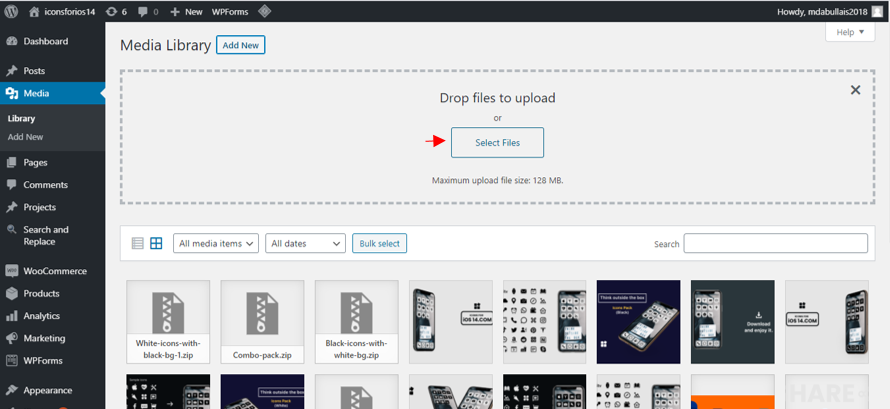
If you have a WordPress site than add your files you want sell to your media library. If you are not using WordPress and creating website from code you can add this file to your public.html folder of your hosting.
Step 5
This is very important step which is to create after payment page (a page to which the customer will be directed after making the payment) like this:
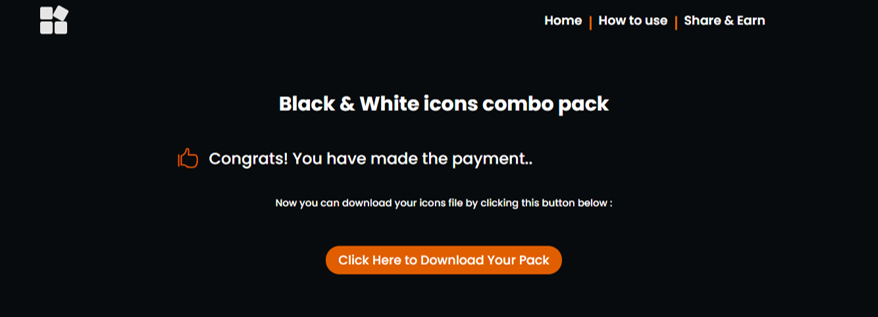
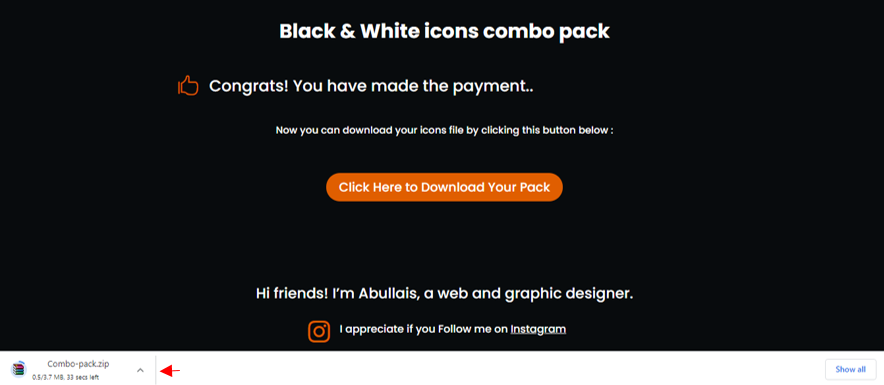
Once the customer clicks the button the digital product will be downloaded.
Now how to connect the digital file to this button and how to make this button such that when you click it the file is downloaded automatically, well it’s very simple. Follow these two steps:
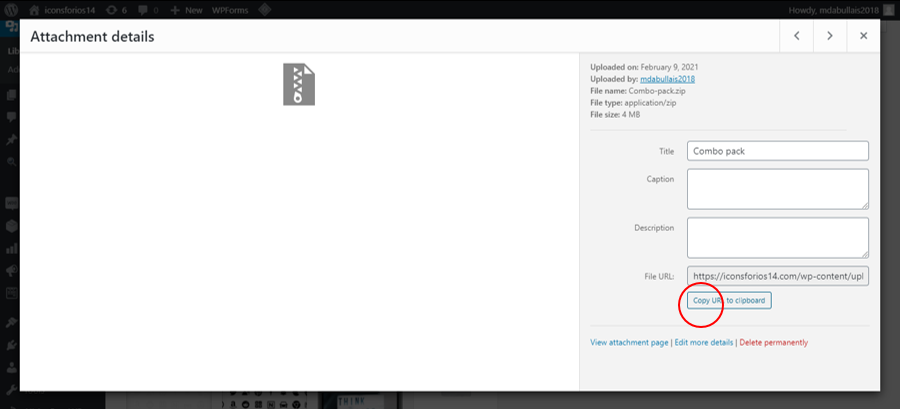
1– To connect the digital file to this button go to media library in WordPress or public html (in coding based site) and copy its URL and paste it inside the href of download button.
2– To make that button download the file on clicking we need to add little bit of JavaScript, it sounds boring. Right?
Don’t worry just copy and paste the code I have provided.
What we are doing here is we are adding an on click function of downloading to that button, let’s give that button a class name of download-pack so that we can target it for adding on click function in javascript.
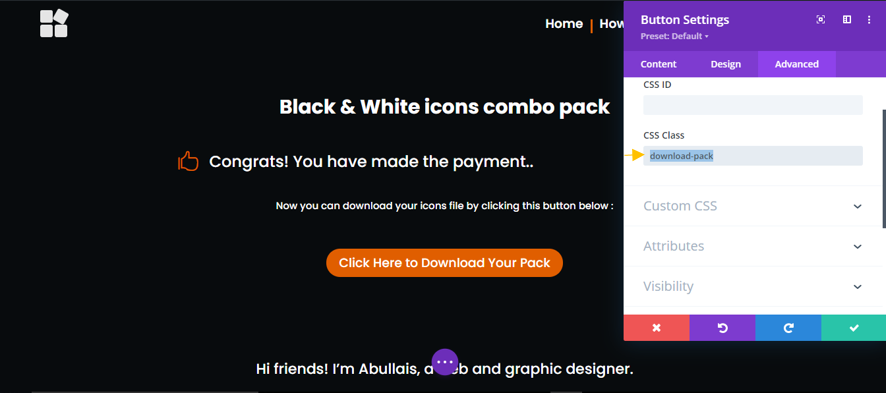
You can give any name to the class but remember the class name cannot start with number or a capital letter.
Note: Here I am using Divi. You can do this without Divi theme builder in any WordPress website as well for example:
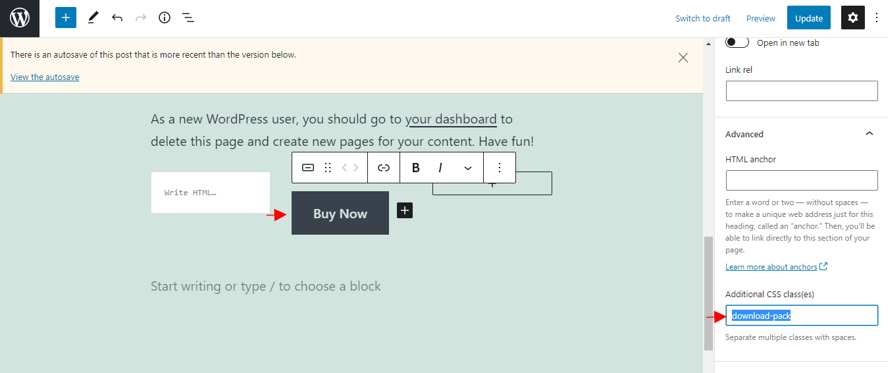
Now after we have given a specific class name to that button we will add on click downloading function to it.
Add this jQuery code in head of our website:
<script>
jQuery(document).ready(function() {
var downloadButton = jQuery(‘.download-pack’);
downloadButton.each(function(index) {
jQuery(this).attr(‘download’, ”);
});
});
</script>
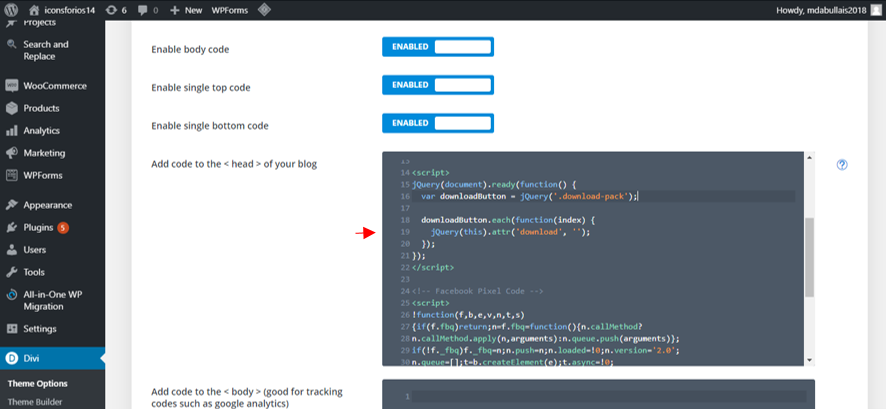
So when you add this code, the button will download the digital file when you click it.
Like this:
That’s the end, if you have multiple products repeat the same process for each. For each product you will have to create different PayPal button.
Following this method will allow you to sell your digital products without asking billing address from customers(which is unnecessary in case of digital products) and without having many check out pages as it is the problem with woo commerce plug-in of WordPress websites.
Bonus
How to allow your customers to pay without creating PayPal account in PayPal payment gateway?
Log in to your PayPal account click on setting icon
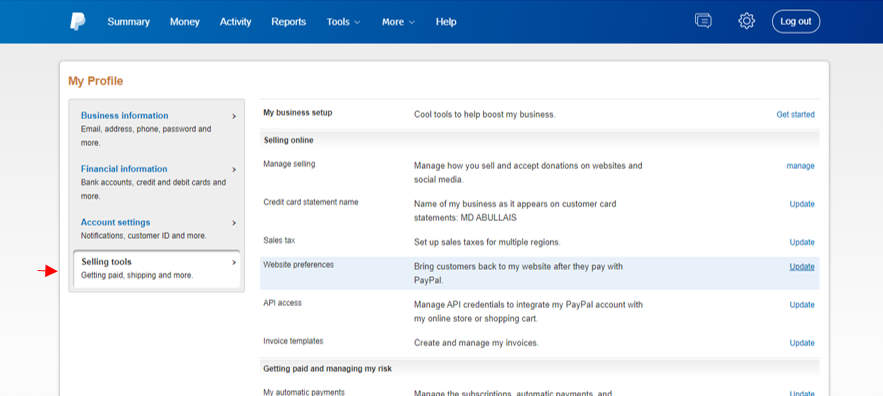
Select selling tools > website preferences > click update
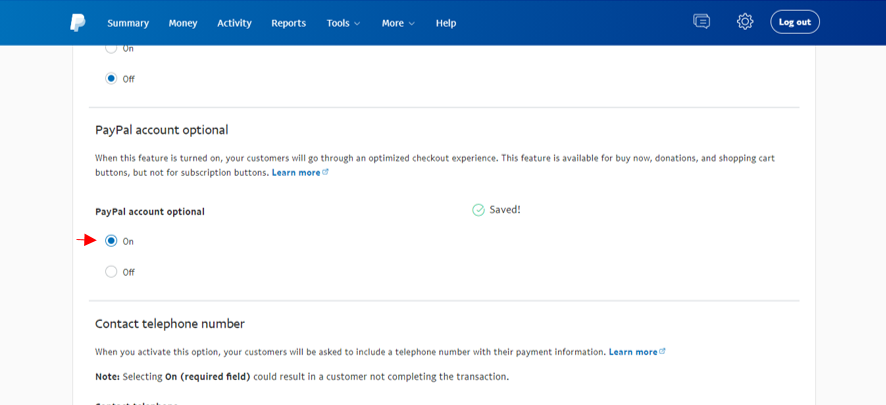
Turn on Papal account option which allows your customers to pay without creating a PayPal account.
How to disable shipping details when paying through card in PayPal
When you are selling digital products you won’t need to ask your customers their shipping address. Unfortunately there is no option to remove it from PayPal when you are allowing your customers to pay through the card with creating account. PayPal needs to know the location and other details of the customers in order to avoid any fraud or misuse of the card.
There for PayPal even does not allow to pay with card in certain situations. PayPal decides by itself when to allow the feature of paying with cards and when not to do so.