How to change the home screen and icons of iPhone
Now ios14 allows us to change the icons of iPhone using shortcut app made by apple. Which makes your iPhone screen customizable to whatever design you like.
Requirements:
- iOS 14 or later os in your iPhone
- Shortcut App
- Icons pack
Where to Get icons pack for ios14:
Well there are many websites that provide icons one of them is created by me i.e. www.iconsforios14.com I will highly appreciate if you support me by buying the pack.
Step 1
You get all icons in a zip file, unzip them. Learn how to unzip a file in iPhone in case you are unaware of it.
Step 2
Open the app and click on add new shortcut
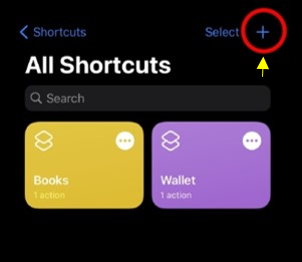
Step 3
Click on add action
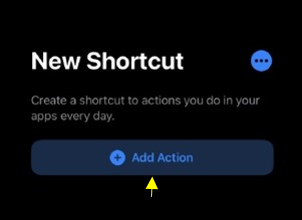
Step 4
Search for “Open App”
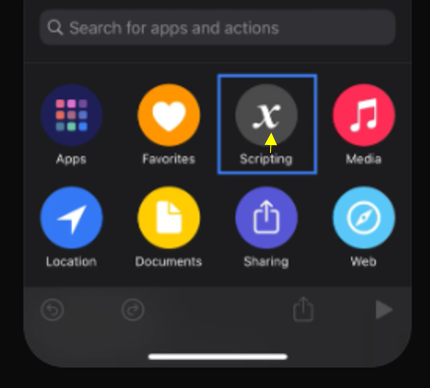
Step 5
Choose the app you want to customize on your home screen (in my case I am selecting camera app)
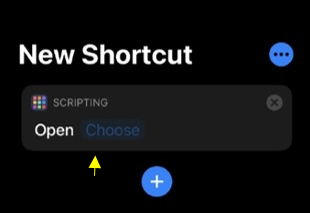
Step 6
Click on the “Add to Home Screen” button
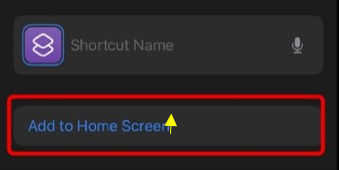
Step 7
Now you have to choose the icon from the pack that you downloaded.
Click on the icon and select choose file.
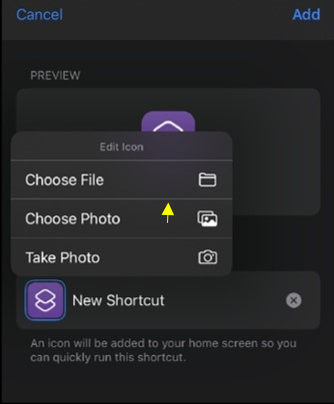
Step 8
Select the icon image.

Step 9
After selecting the icon give it a name and select add and you are done.
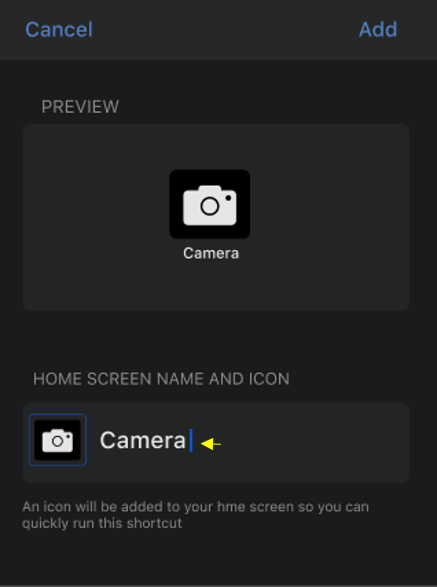
Step 10
Repeat the same procedure for rest of your apps.
Notes:
- This process can be undone by just deleting shortcut icons at home screen.
- Wallpaper would be included in icons pack.
- The process is same even if you are using any other icon pack.
- You will not receive notification number(for example message) on icons as it is a shortcut.
- A widget app is recommended to download for changing widget. For example widget smith.