How to fix “your device is corrupt …” in Nokia 5.1 plus
How to fix the issue of “Your device is corrupted. It can’t be trusted and will not boot ” in Nokia
The reason for this issue could be updating your os or using very old os etc. You can fix this issue by following these steps.
Requirements:
- PC or Laptop.
- Charging cable for your mobile.
- Internet connection
- SP flash tool (software)click here to download.
- DA and Scatter files (zip files) click here to download.
- Patience (Don’t worry everything is easy to follow and incase you get stuck, I have described some of the issues you might face during the process at the end
Now coming to the solution, there could be either of two situations for your mobile :
Situation 1 : You remember the Gmail that you had used to sign in your device before.
Situation 2 : You don’t remember it or you are doing this for someone else who has forgotten it.
You will have to do one extra step in second case which we will explain later.
Situation 1
Step1:
Download sp(smart phone) flash tool software which is used to fix issues related to upgrading or downgrading os, formatting your mobile phone etc. There are many versions of it available on their website, what I would recommend is to download v5.1824.You can download it from this link.
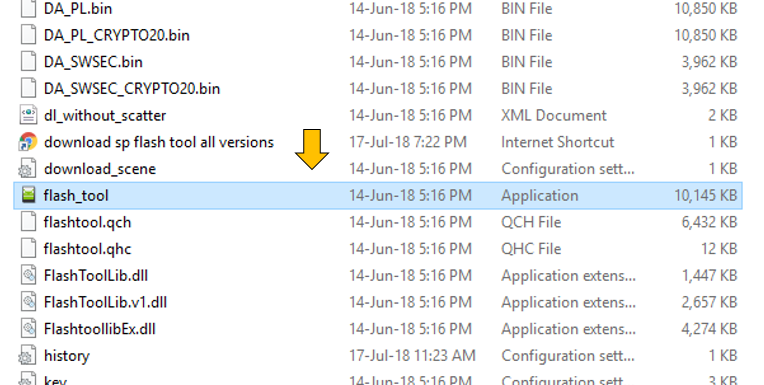
After downloading it successfully, unzip the file (watch a tutorial on how to unzip a file incase you don’t know how to do it) and open the software by clicking here (refer the screen shot).
Step2:
Download “DA and Scatter file” and unzip them. These are heavy files with around 2GB of size so make sure you have enough internet and also you might need some more interet while updating operating system of your phone -:).
Step3:
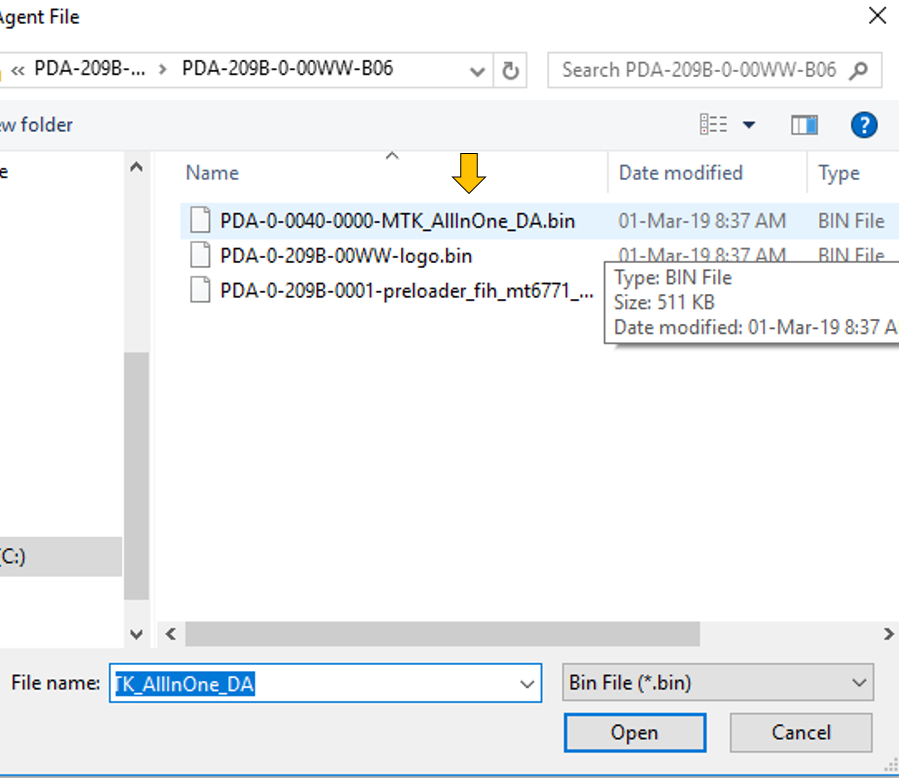
In download-Agent select choose option.
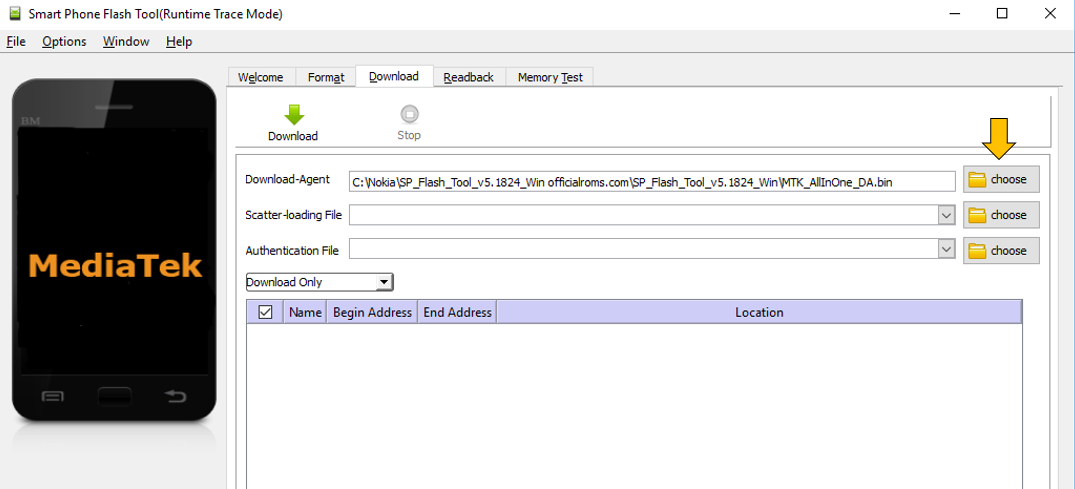
And choose this file “PDA-0-0040-0000-MTK_AllInOne_DA.bin”
Step4:
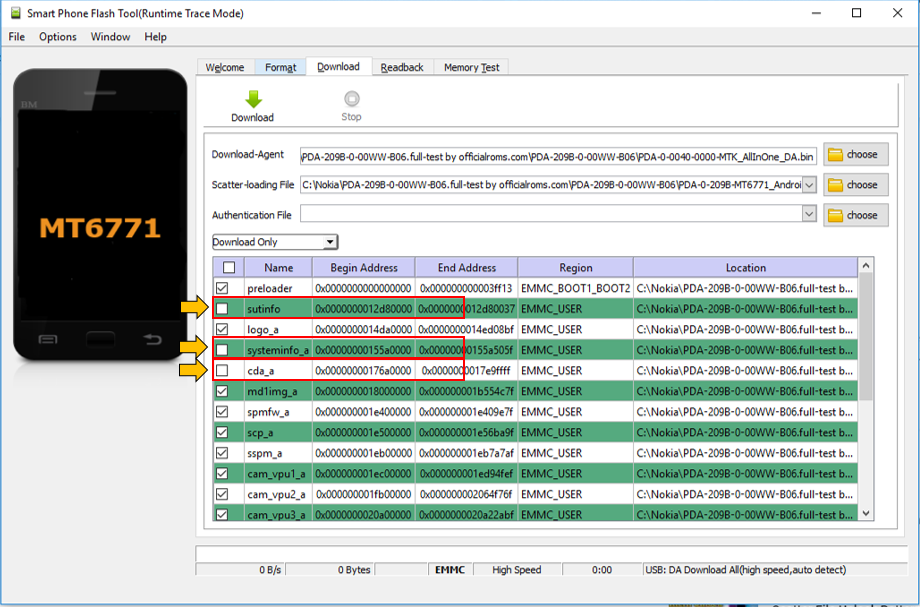
Now you have selected both files, the next step is to click green download button
Important note: Before you click download button Plz unselect these files as they may cause issues in the process.
Step5:
Now coming to your mobile phone, make sure you have enough charge in mobile(more that 50% ) so that there must not be any power cut during the process.
After turning your phone off hold volume up and volume down button of your mobile at the same time and take your cable (other side of mobile must be connected to your laptop or pc) and plug in the cable to mobile while holding volume up and volume down button at the same time.
The process will start automatically and might take few minutes. You will see this screen on computer when finished.
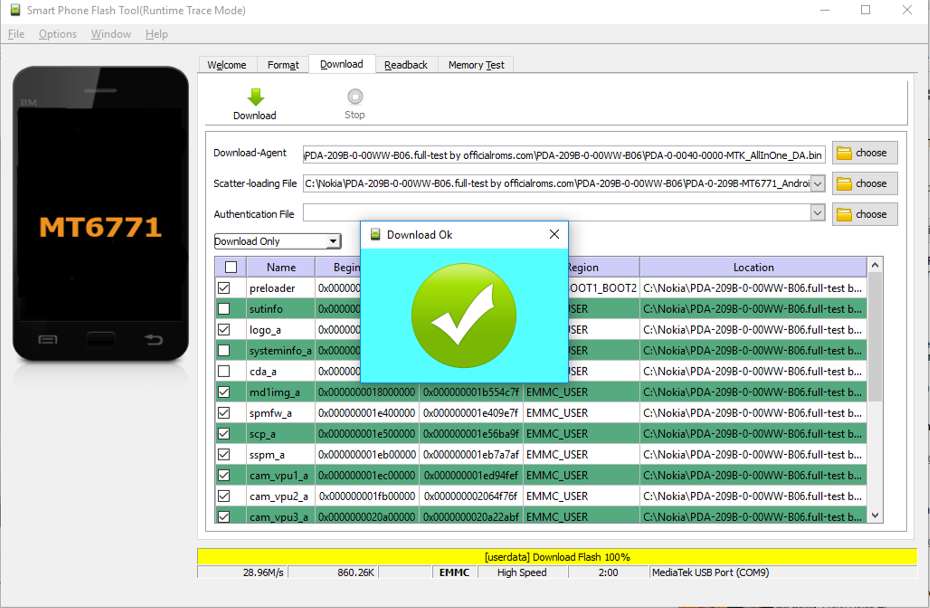
Congrats! our phone is flashed successfully. Now unplug the phone and turn it on (Might take few minutes to be on) and connect it to Wi-Fi and log in with Gmail id that you had used on it before. If you don’t know that Gmail id than you need to do one more task.
Situation 2
What is FRP in mobiles ?
If you don’t have log in credentials of your mobile phone than you must be aware of new security system of smart phones i.e. FRP.
FRP (Format Reset Protection) protects anyone to reset anyone’s smart phone and use it with out entering Gmail id which has been used to start the phone. It basically provides protection to your phone from being theft and used illegally after reset.
Now we will show you how you can skip FRP ?
Step1:
After following all the steps mentioned above. Follow these steps. Plug out the cable and turn off the phone if it is on.
Step2:
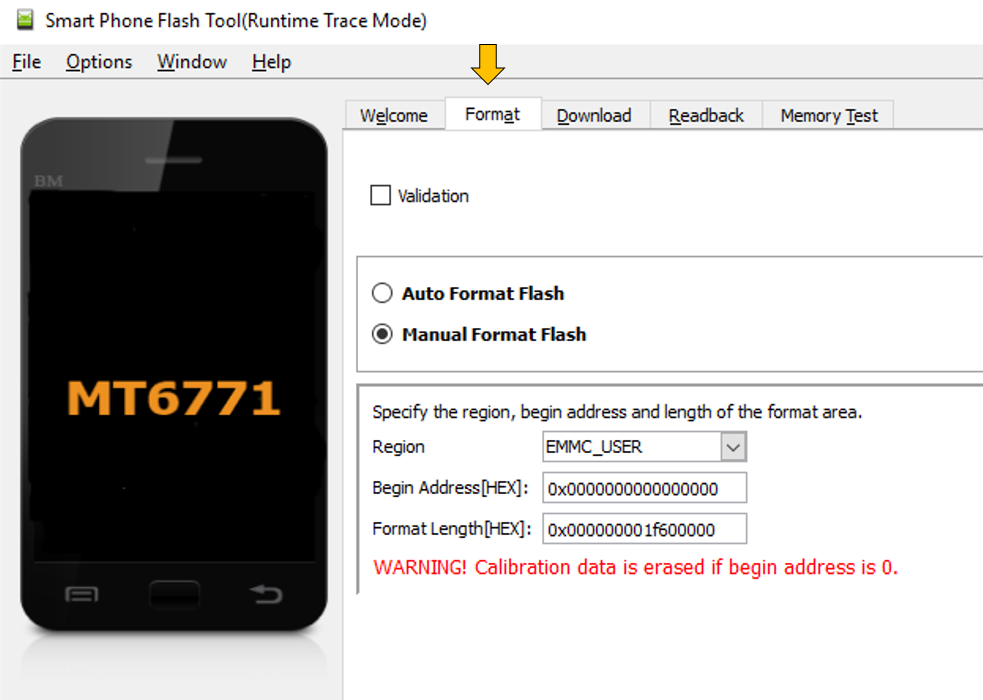
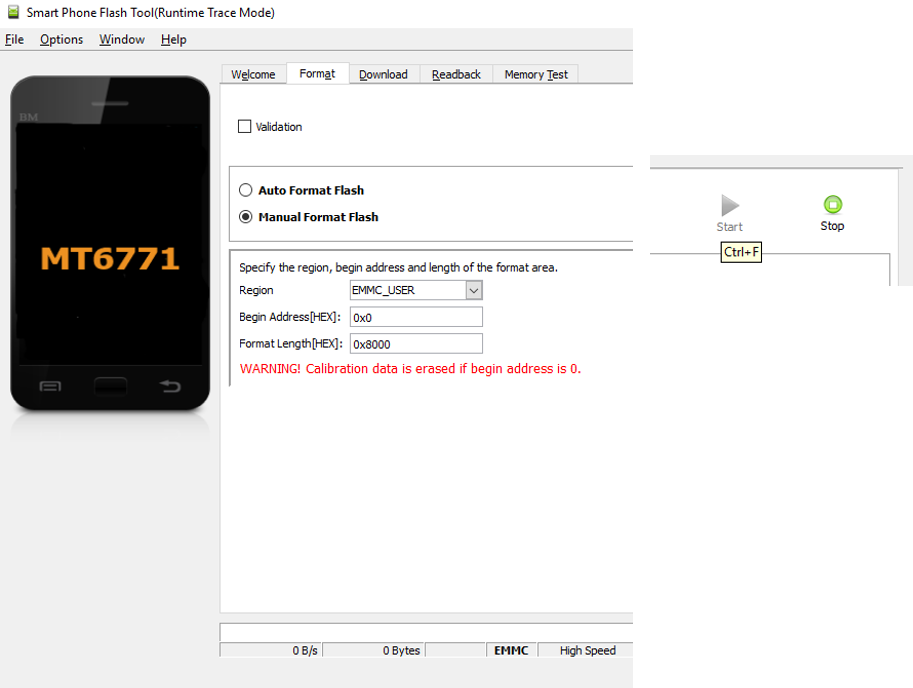
In format select Manual format flash
Step3:
Now we need to enter “ Begin address “ & “ Format length “ manually.
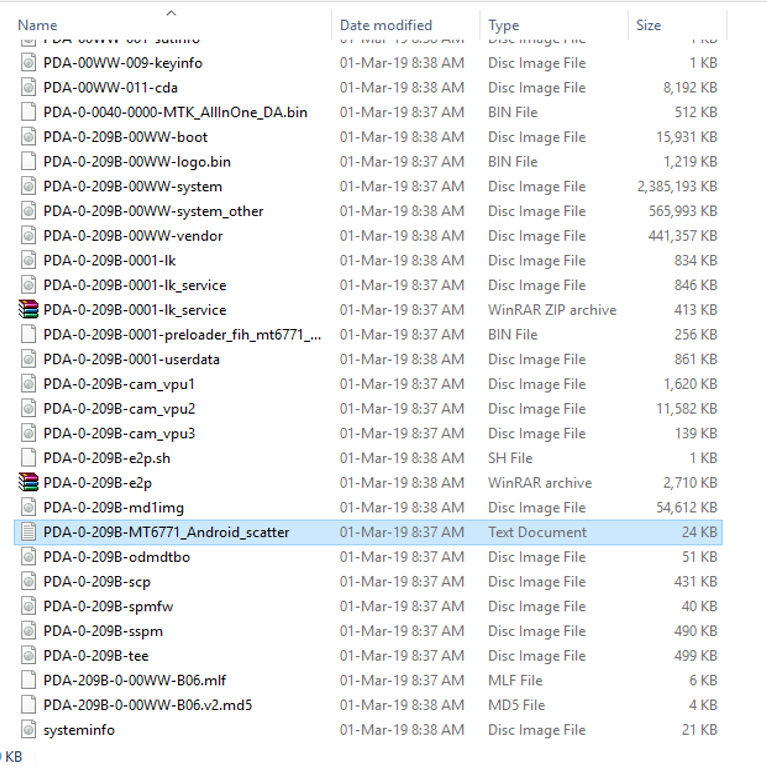
To find these values of your mobile you need to open this file (shown in image) which is located in your folder “DA and Scatter file”.
Open it in a text editor Like Note ++ , WordPad or chrome etc.
You can use any tool which allows to see the text inside.
Step3:
After you opened it (I have used chrome to open it) search for these two values “physical_start_addr” & “partition_size”
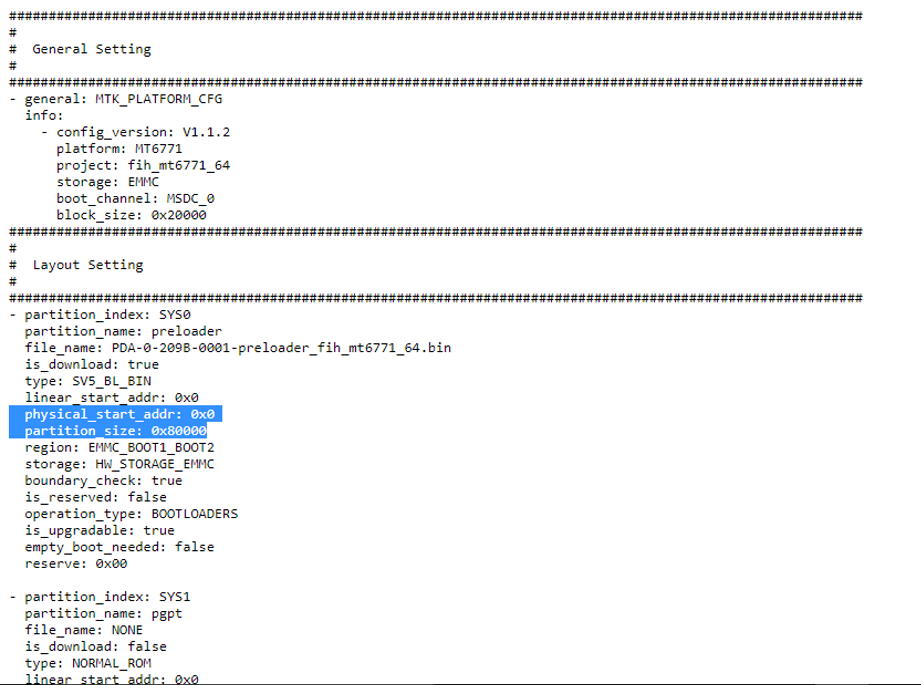
Now copy paste those two values first one in “ Begin address “ & second one in “ Format length “ one by one like this and click start.
Step5:
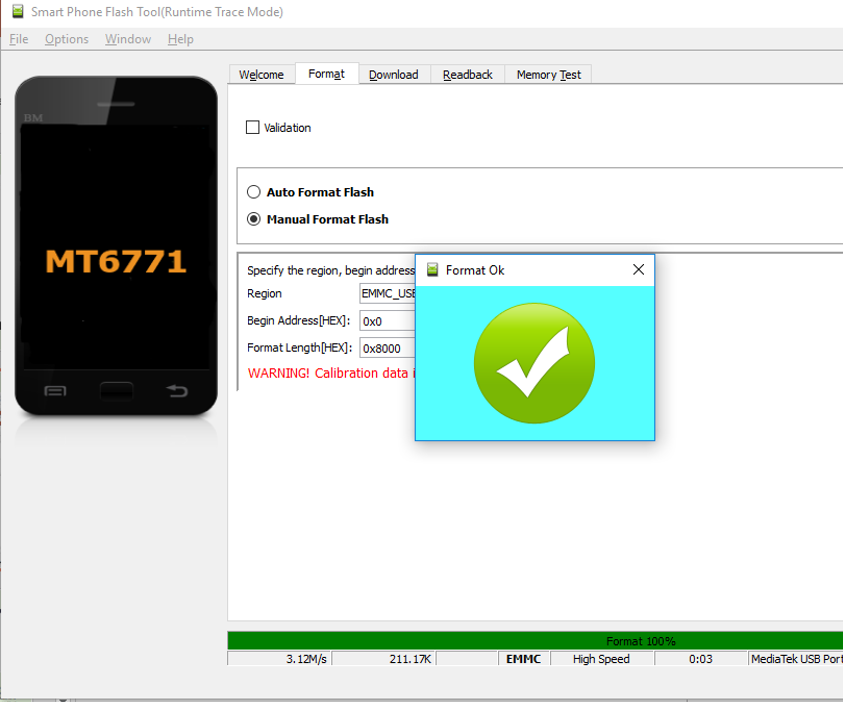
Now come to your mobile phone and hold volume up and volume down button and connect your cable as you did before.
Congrats! your FRP is removed within seconds now when it is asking to connect to Wi-Fi, you will get a skip option and your phone will start as a brand new phone.
Solution for the issue
Software not performing any action while you plugged in the cable or Power surge error
Make sure to select the same DA and scatter files that are mentioned in instruction.
Make sure you have the same version of software that I have used and make sure to unselect three options that I have mentioned in instructions.
If the method does not work, kindly delete the software folder and unzip it again as you might not have unzipped the files correctly or your cable port of computer is not working properly select another port or check your usb drivers.